
Dr. Kay
 LLM, LLMs, Large Language Models, Ollama
 0 comment
 10 Dec, 2025
brew install ollamaLinux (Ubuntu/Debian)
curl -fsSL https://ollama.com/install.sh | shWindows
.exe file and follow the installation prompts.After installation, open a terminal and run:
ollama run llama3This command:
a. Create a new project folder
mkdir basic-app

cd basic-app
b. (Optional) Create a virtual environment
python -m venv venv

source venv/bin/activate


# On Windows
venv\Scripts\activate
pip install streamlit
Create a Python file named app.py:
import streamlit as st
st.title("My First Streamlit App")

st.write("Hello, world!")

st.text("This is a simple text output.")
# Add an interactive slider

number = st.slider("Pick a number", 0, 100, 25)

st.write("You picked:", number)
In your terminal:
This will open a browser window at http://localhost:8501 showing your app.
st.title("My Basic Chatbot")

if "messages" not in st.session_state:
    st.session_state.messages = []

for message in st.session_state.messages:
    with st.chat_message(message["role"]):
        st.markdown(message["content"])

if prompt := st.chat_input("What's up"): # Get user input
    with st.chat_message("user"):
        st.markdown(prompt)
    st.session_state.messages.append({"role": "user", "content": prompt})
    response = f"Echo: {prompt}"

    with st.chat_message("assistant"):
        st.markdown(response)
    st.session_state.messages.append({"role": "assistant", "content": response})
In the command line enter the command below to run the chatbot:
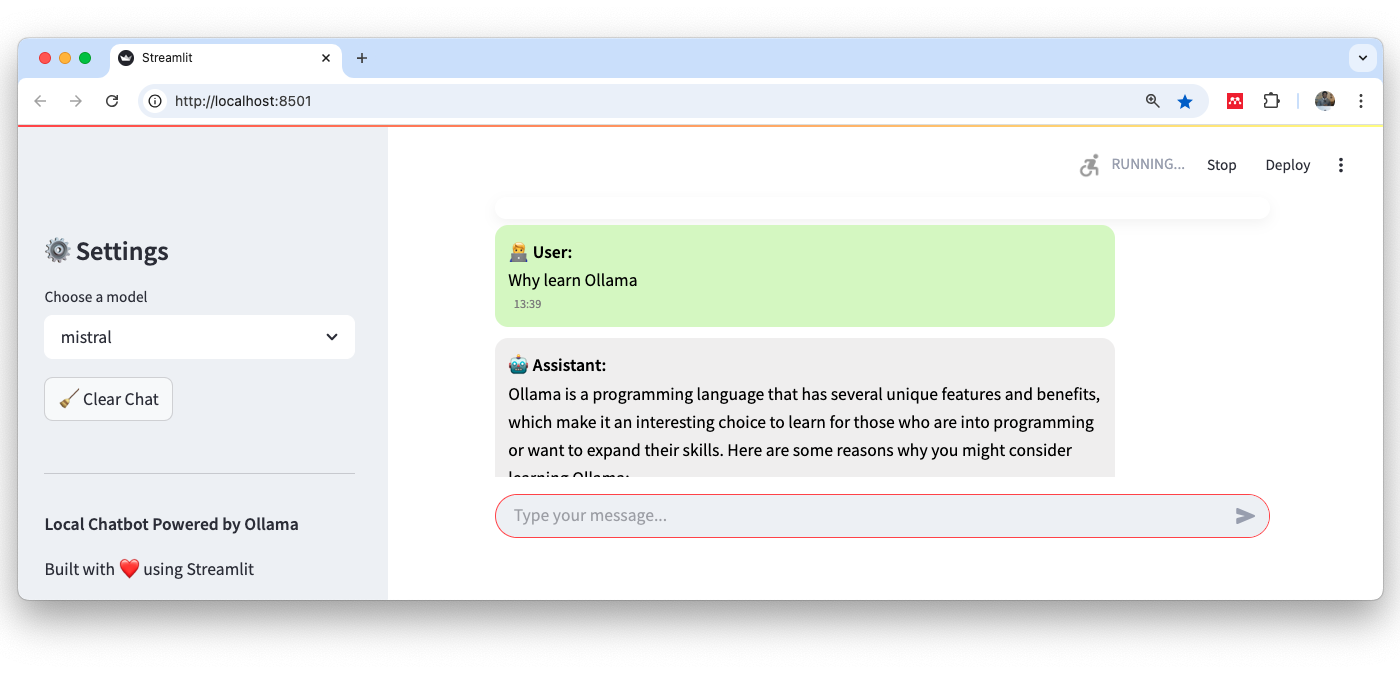
This will open a browser window at http://localhost:8501 showing your app and you can test that the bot works
with st.spinner("Thinking..."):
    response = requests.post(
        "http://localhost:11434/api/chat",
        json={
            "model": MODEL_NAME,
            "messages": [{"role": m["role"], "content": m["content"]} for m in st.session_state.messages],
            "stream": False  # Set to True for streaming support (more complex handling)
        }
    )
You can then run the file as before.


Dr. Kay
0 comment